
Guide · Desk Setup & Comfort

Laptop Desk Setup Kit (2026)

Raise the screen, stand when you want, and run your desk through one cable

To turn a laptop into a full desk, raise the screen to eye level and run everything through one cable. For long laptop use, Cornell's ergonomics guide suggests a separate monitor and keyboard, with a docking station 910.

4 picksChecked Nov 16, 2026

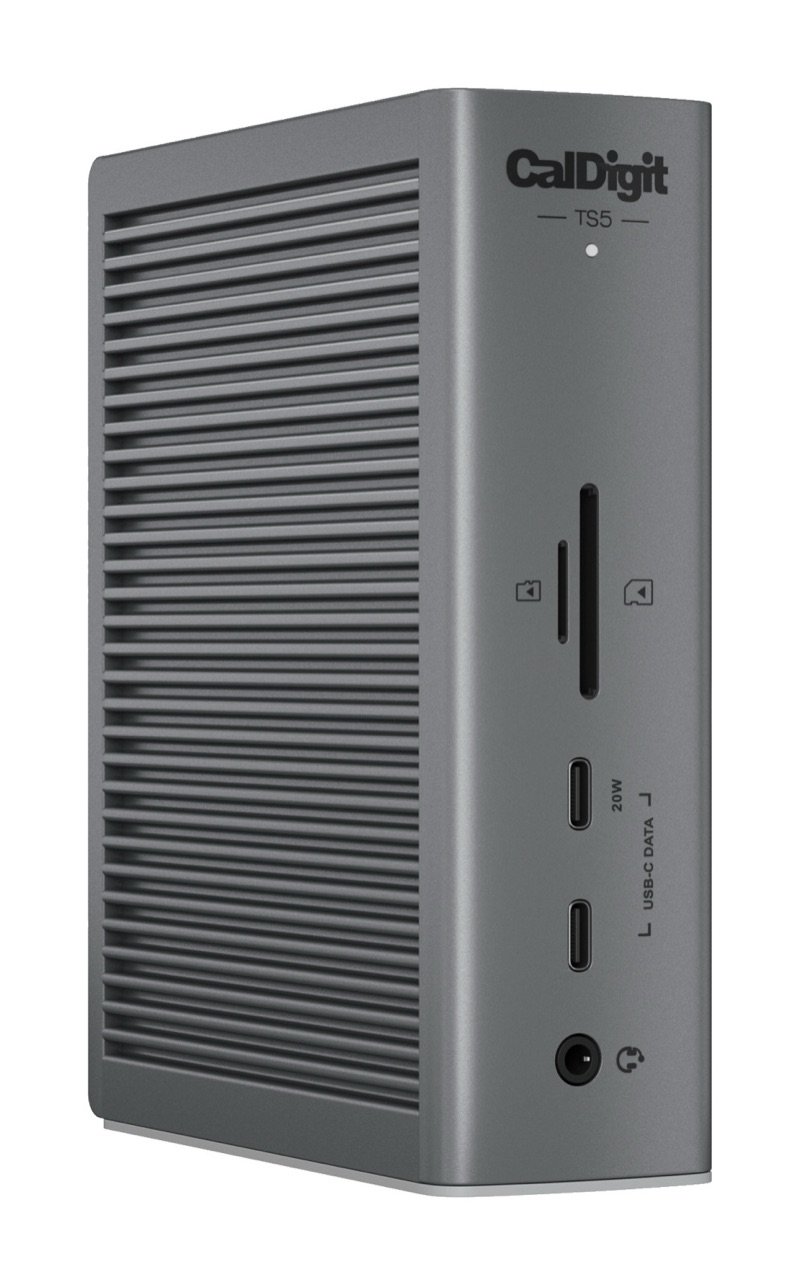
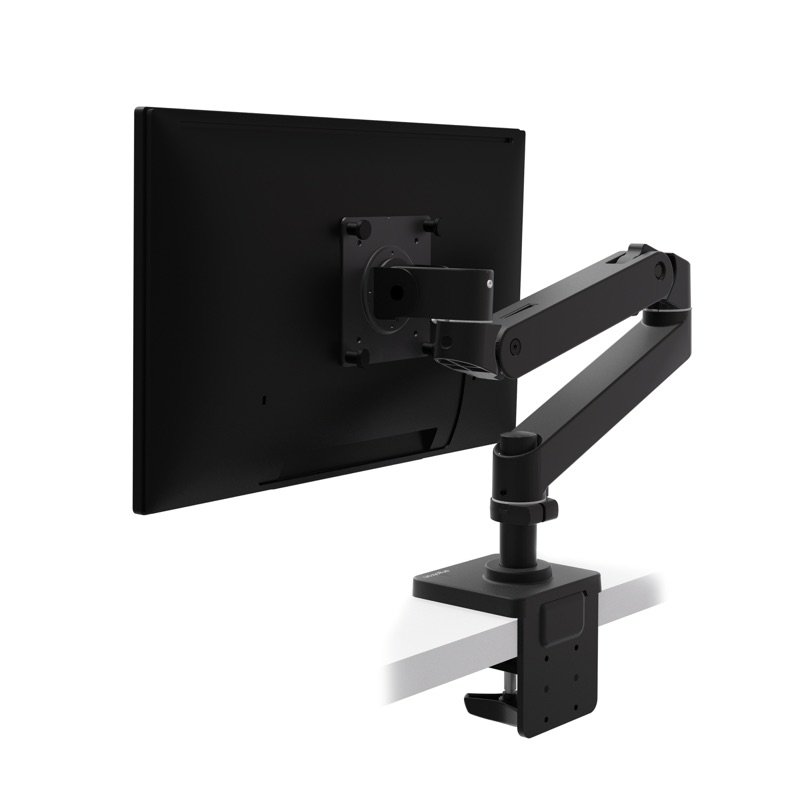
Ergotron LX Pro monitor arm in matte black, holding a monitor, clamped to a desk edge, seen from behindErgotron WorkFit-TX standing desk converter in black, raised, holding two monitors, with its keyboard tray pulled outCalDigit TS5 Thunderbolt 5 dock in space gray, standing upright, with its front SD and microSD slots, two USB-C ports and audio jack
Photos: Ergotron, CalDigit

The picks side by side

We earn a commission if you buy through links on this page. It costs you nothing extra.

PickTypeKey numbersCheck firstWarrantyBest for
Ergotron LX Pro monitor arm in matte black, holding a monitor, clamped to a desk edge, seen from behindThe monitor armErgotron LX Pro Desk Monitor ArmPhoto: Ergotron
Desk-clamp monitor arm 4–22 lb screen, 13 in lift Desk edge up to 2.4 in 10 years One 4–22 lb screen, raised to eye level
Ergotron WorkFit-TX standing desk converter in black, raised, holding two monitors, with its keyboard tray pulled outThe standing converterErgotron WorkFit-TX Standing Desk ConverterPhoto: Ergotron
Sit-stand converter 17 in lift, 10–40 lb on top Desk 23.5 in deep, 31 in wide 5 years Sitting and standing at a desk you keep
CalDigit TS5 Thunderbolt 5 dock in space gray, standing upright, with its front SD and microSD slots, two USB-C ports and audio jackThe one-cable dockCalDigit TS5 Thunderbolt 5 DockPhoto: CalDigit
Thunderbolt 5 dock 15 ports, 140 W charging Screens your chip allows 2 years One cable for power, screens, network and cards
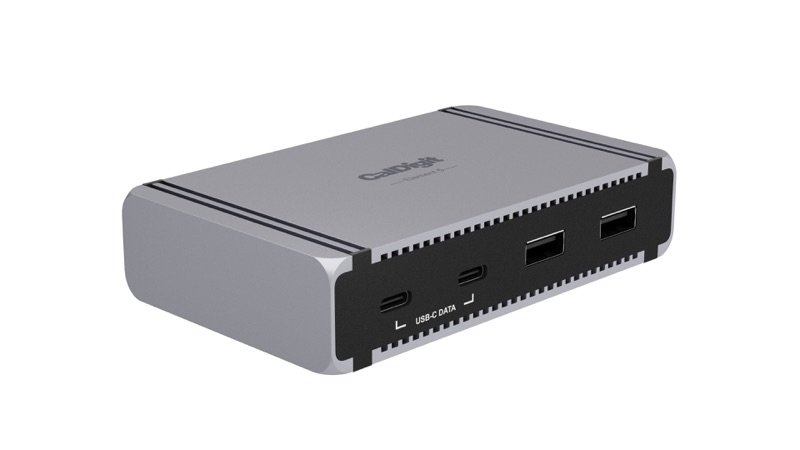
CalDigit Element 5 Hub in space gray, seen from the front right: two USB-C and two USB-A portsThe smaller hubCalDigit Element 5 Hub (Thunderbolt 5)Photo: CalDigit
Thunderbolt 5 hub 9 ports, 90 W charging Laptop needs 90 W or less 2 years More fast ports from a box smaller than a phone

The kit has three parts. To raise the screen, the Ergotron LX Pro arm lifts a 4–22 lb (1.8–10 kg) screen through 13 in (33 cm) 12. To stand, add the WorkFit-TX converter. For the one cable, the CalDigit TS5 dock charges at up to 140 W 25; the Element 5 Hub adds ports in a smaller box. Check two things first, because no dock can change them: how many screens your laptop's chip runs, and which Thunderbolt or USB port it has 16.

How we chose

These are research-based picks: we have not used these products.

What decided each part:

  • the screen: weight range, lift and desk fit
  • standing: lift, load and desk size
  • the one cable: charging watts, ports, and the screens your laptop's chip allows

Neither CalDigit nor Ergotron appears in the US recall records (CPSC) 5253.

Left out, for the one cable:

  • CalDigit's TS4: a Thunderbolt 4 dock with 98 W charging 34
  • CalDigit's TS5 Plus: adds 10 Gb Ethernet and a DisplayPort, but keeps only two spare Thunderbolt ports 35
  • OWC Thunderbolt 5 Hub: 140 W, but one USB-A port 42

Left out, for standing:

  • Ergotron's WorkFit-Z Mini: lifts 12.5 in (32 cm), with a 2-year warranty 23
  • VariDesk Pro Plus 36 Electric: its top starts 6 in (15 cm) above the desk 24

Also left out: the Lexar ES5 and Samsung's P9, travel drives, not part of a desk 4351.

  • 1Fits your laptop: port, chip and screen count
  • 2Charging watts against Apple's fast-charge lines
  • 3Fits your desk: clamp, depth and weight range
  • 4Height, lift and reach for eye level
  • 5Speed and power measured by experts
  • 6Warranty, safety certificate, recall records

We earn a commission on these Amazon links. It costs you nothing extra.

Ergotron LX Pro monitor arm in matte black, holding a monitor, clamped to a desk edge, seen from behind
1The monitor arm

Ergotron LX Pro Desk Monitor Arm

It raises a monitor above the laptop and holds it where you set it. PCWorld names it the best single-monitor arm 15. The same writer liked it in the Work From Here newsletter, on a unit Ergotron sent 16.

By Ergotron's figures:

  • it takes screens of 4–22 lb (1.8–10 kg), typically up to 34 in, with 75 or 100 mm VESA holes 12
  • the mount moves from 3.9 to 18.3 in (9.8–46.6 cm) above the desk 1412
  • it reaches up to 25 in (64 cm) toward you 1412

A rotation stop can keep the screen from swinging into a wall behind a small desk, and the warranty runs 10 years 12.

CatchIt stops at 22 lb (10 kg), below the older LX's 25 lb; PCWorld notes 32- and 34-inch monitors usually weigh 15 lb or less, and points heavier screens to the Ergotron HX 15. The cable channels fit only a few cables 16.

Ergotron WorkFit-TX standing desk converter in black, raised, holding two monitors, with its keyboard tray pulled out
2The standing converter

Ergotron WorkFit-TX Standing Desk Converter

It sits on your desk and lifts the whole setup. You set it by hand, at any height:

  • lowered, its top is about 2 in (5 cm) above the desk 1817
  • raised, it is 19 in (48 cm) above the desk 1817
  • that is 17 in (43.2 cm) of travel 1817

The keyboard tray hangs below the top. Seated, it can sit 0.8–3.8 in (2–10 cm) below your desk's surface; raised, it sits 13–16 in (33–41 cm) above it 18.

The 32 × 27 in (81 × 68.5 cm) top holds two screens side by side in Ergotron's drawing, within 10–40 lb (4.5–18.2 kg) in all 171819. Work While Walking, TidBITS and GottaBeMobile all used it and found it steady 202122. Ergotron covers it for 5 years 17.

CatchIt weighs 58.5 lb (26.6 kg), Ergotron asks for two people to lift it, and there is no motor 1719. It needs a desk at least 23.5 in (60 cm) deep, and it takes only Ergotron's own WorkFit monitor kits, not a desk-clamp arm 192022.

CalDigit TS5 Thunderbolt 5 dock in space gray, standing upright, with its front SD and microSD slots, two USB-C ports and audio jack
3The one-cable dock

CalDigit TS5 Thunderbolt 5 Dock

One Thunderbolt cable to the laptop carries power, screens and everything else. It charges at up to 140 W, which CalDigit says a 16-inch MacBook Pro needs, from a 240 W brick 2526.

Behind that cable sit 15 ports 25:

  • three spare Thunderbolt 5 ports, for screens and fast drives 25
  • three USB-C and two USB-A ports
  • SD and microSD card readers
  • 2.5 Gb/s Ethernet, and audio 25

Tom's Hardware measured a fast drive through it at just over 5,300 MB/s reading, and its Ethernet at full speed 29. It has no fan: MacRumors found it only lukewarm, and 9to5Mac called it silent 3031.

A test lab, Global Certification Corp., certified it to the safety standard for IT equipment, EN 62368-1 28. It is Tom's Hardware's pick for most people and a Macworld Editors' Choice 2932.

CatchNo HDMI or DisplayPort: screens use the spare Thunderbolt ports or adapters 25. Base M1–M3 Macs still get one screen through it 27. On Thunderbolt 4 or older ports, which every MacBook Air has, some functions are reduced 266. MacRumors saw drives on its USB-C ports sometimes not appear 30.

CalDigit Element 5 Hub in space gray, seen from the front right: two USB-C and two USB-A ports
4The smaller hub

CalDigit Element 5 Hub (Thunderbolt 5)

It turns one Thunderbolt cable into eight more ports 36:

  • three spare Thunderbolt 5 ports 36
  • three USB-A and two USB-C ports at 10 Gb/s 36

The box measures 4.48 × 2.75 × 1.0 in (114 × 70 × 25.5 mm) and weighs 0.44 lb (0.20 kg) 36. That is about a third of the TS5's weight, yet it runs as many screens 253027.

Fast drives stay fast through it. In 9to5Mac's run, a Thunderbolt 5 drive read 5,144.5 MB/s through it, against 5,158.5 MB/s plugged straight into the Mac 39.

CalDigit says its 180 W brick holds a steady 90 W for the laptop 3637. Windows Central checked the other ports' power with a meter and found CalDigit's figures true 40. Global Certification Corp. certified it to EN 62368-1 too, and Macworld names it its top Thunderbolt 5 hub 3841.

Catch90 W is under Apple's fast-charge lines for 14- and 16-inch MacBook Pros, so those charge more slowly 536. No HDMI, Ethernet, SD reader or audio jack 36. Windows Central saw other ports slow down when a fast drive shared it with big screens 40.

What to look for

1

Check your laptop's port before you buy a dock

The dock and the hub both depend on one port, so check yours first.

Thunderbolt 5, by Intel's figures:

  • 80 Gb/s each way 7
  • up to 120 Gb/s for screens, with Bandwidth Boost 7
  • twice Thunderbolt 4's total, and built to work with older Thunderbolt and USB ports 7

Which Mac laptops have which port, by Apple's list:

  • Thunderbolt 5: 14-inch MacBook Pros with Pro or Max chips, and 16-inch MacBook Pros, from 2024 on 6
  • Thunderbolt 4: MacBook Airs from 2025 6
  • Thunderbolt / USB 4: MacBook Airs from 2020 to 2024 6

A Thunderbolt 5 dock or hub works on those too, but CalDigit says some functions are reduced 2637. To check your Mac, Apple suggests choosing Apple menu > About This Mac and looking up its specs page 6.

On Windows, CalDigit asks for Thunderbolt 4 or newer and an Intel 12th Gen or newer chip; Thunderbolt 3 Windows PCs are not supported 252633.

2

Count the screens your chip allows

A dock adds ports, not screens. Apple says a hub can carry two displays over one Thunderbolt port, but does not raise how many your Mac supports 12. The count also depends on each display's resolution and refresh rate 12.

CalDigit's chart for its Thunderbolt 5 dock and hub 27:

  • one screen on base M1–M3 Macs
  • two on base M4 and M5 chips, and on M1–M4 Pro and Max
  • three on an M5 Pro, and four on an M5 Max

Two 4K screens at 240 Hz need an M4 Max or M5 Max, by the same chart 27. Neither CalDigit box supports DisplayLink, the usual software way around a chip's limit 3241. So check your chip first: the dock cannot change the answer.

3

Match the dock's watts to your laptop

A dock that charges saves a charger on the desk, if its watts are enough. By CalDigit's figures, the TS5 gives up to 140 W and the Element 5 Hub 90 W 2536.

Apple's fast-charge lines:

  • MacBook Air from 2022 on: its 70 W adapter (67 W on the 13.6-inch), or a display that delivers 85 W 5
  • 14-inch MacBook Pro: a 96 W adapter or a 94 W display 5
  • 16-inch MacBook Pro: only Apple's 140 W adapter or its Studio Display XDR 5

Below the line a laptop still charges, just more slowly 36. For heavy processor or graphics work, CalDigit suggests plugging in the laptop's own charger as well 26. Windows laptops that charge only through their own charging port will not charge from the TS5 26.

4

Put the top of the screen at eye level

Raise the screen until its top is near your eye level.

Cornell's ergonomics guide:

  • your eyes level with a point about 2–3 in below the top of the monitor's case 9
  • the screen about an arm's length away 9
  • its center about 17–18 degrees below eye level 9

CCOHS, Canada's workplace-safety centre, says the top of the screen should not sit above eye level 11. A little lower can suit bifocals or progressive lenses, and two screens used equally go side by side in a gentle curve 11.

A laptop cannot do this while you type on it. So for long use, Cornell suggests a separate monitor and keyboard, connected to the laptop or a docking station 910. Our desk height calculator turns your height into seated and standing heights for the screen and the keyboard.

5

Measure the desk and weigh the screen

Weigh your screen and measure your desk before you buy: both desk picks have limits at both ends.

The LX Pro arm:

  • takes a screen of 4–22 lb (1.8–10 kg), weighed without its stand, as PCWorld advises; a lighter screen falls outside the range too 1215
  • clamps to a desk edge up to 2.4 in (60 mm) thick, set in one of three positions 13

PCWorld suggests asking the desk's maker before clamping to glass, and warns that over-tightening can dent soft tops such as veneer over particleboard 15.

The WorkFit-TX converter:

  • wants 10–40 lb (4.5–18.2 kg) on it in all, no more than 5 lb (2.3 kg) of that on the keyboard tray 19
  • needs a desk at least 23.5 in (60 cm) deep and 31 in (77 cm) wide 1918
  • its tray then reaches about 9.5 in (24 cm) past the front edge 1918
6

Use the right cable and the right port

Use the cable CalDigit asks for: a certified 80 Gb/s Thunderbolt 5 cable 25. Intel says Thunderbolt 5 reaches full speed on passive cables up to 1 m (3.3 ft) 7.

Keep fast drives on the spare Thunderbolt 5 ports. The 5,000 MB/s results above came from Thunderbolt 5 drives on those ports 2939. The USB-C ports on the TS5 and the Element 5 Hub run at 10 Gb/s 2536. Our USB-C cable guide explains the labels.

Questions

Can I put a monitor arm on a standing desk converter?

Not a desk-clamp arm such as the LX Pro. It clamps to the desk edge, so the screen stays put when the converter's top rises 13.

The WorkFit-TX takes only Ergotron's own WorkFit monitor kits, sold separately 172022. Screens on their own stands can sit on its 32 × 27 in (81 × 68.5 cm) top instead, within its 10–40 lb (4.5–18.2 kg) range 1719.

Do I need a docking station for my laptop?

Not for one screen and a mouse. A dock earns its place when you plug in the same things every day and want one cable to the laptop. The TS5 carries charging, screens, Ethernet, card readers and audio 25.

Cornell's guide suggests a separate monitor and keyboard, with a docking station, for long laptop use 9. If you only need more ports, a hub such as the Element 5 does that in a smaller box 36.

Docking station vs hub: what is the difference?

Here, the dock adds what a hub leaves out. The TS5 and the Element 5 Hub both give three spare Thunderbolt 5 ports and run the same number of screens 253627. The TS5 adds 140 W charging instead of 90 W, 2.5 Gb/s Ethernet, SD and microSD readers and audio jacks, in a box about three times as heavy 2536.

How many monitors can a MacBook Air support?

It depends on the chip, not the dock. Apple lists up to two external screens for MacBook Airs with M4 or M5, and closing the lid adds none 1.

The M2 MacBook Air runs one, and CalDigit's chart gives base M1–M3 Macs one through its docks 427. M3 Airs run two only with the lid closed, an outside keyboard and mouse, and power connected 3.

Can a docking station charge my laptop?

Yes, if the laptop charges over USB-C and the dock gives enough watts. By CalDigit's figures, the TS5 gives up to 140 W and the Element 5 Hub 90 W 2536.

Apple's fast-charge lines:

  • 67–70 W for a MacBook Air 5
  • 94–96 W for a 14-inch MacBook Pro 5
  • 140 W for a 16-inch 5

Below them a Mac still charges, more slowly 36.

How we made this guide

We have not used these products ourselves. This guide is built from the maker's specs and manual and from expert tests. Few owner reports were open for us to read, so this page does not say how common a problem is among owners. Sources are listed below.

45sources
Nov 16, 2026checked
See sources
  1. 1Apple Support 122212: How many displays can be connected to MacBook Air (10 Mar 2026)Nov 16, 2026
  2. 2Apple Support 101571: How many displays can be connected to MacBook Pro (5 Nov 2026)Nov 16, 2026
  3. 3Apple Support: Use dual monitors with MacBook Air and MacBook Pro with M3 chipNov 16, 2026
  4. 4Apple: MacBook Air (M2, 2022) Tech SpecsNov 16, 2026
  5. 5Apple Support 102378: Fast charge your MacBook Air or MacBook Pro (5 Nov 2026)Nov 16, 2026
  6. 6Apple Support 109523: Identify the ports on your MacNov 16, 2026
  7. 7Intel Newsroom: Intel introduces Thunderbolt 5 (12 Sep 2023)Nov 16, 2026
  8. 9Cornell University Ergonomics (Alan Hedge): Computer Workstation Ergonomics Guidelines (rev. 13 Jun 2015)Nov 16, 2026
  9. 10Cornell University Ergonomics: 5 tips for using a laptop computer (upd. 13 Jun 2015)Nov 16, 2026
  10. 11CCOHS (Canadian Centre for Occupational Health and Safety): Positioning the Monitor (confirmed current 21 Jul 2025)Nov 16, 2026
  11. 12Ergotron LX Pro Product Specification Statement (spec sheet PDF, 05.06.2026)Nov 15, 2026
  12. 13Ergotron LX Pro Single Display Desk Mount user guide 888-45-435-W-00 rev. F (06/26)Nov 15, 2026
  13. 14Ergotron LX Pro Arm Single Display Desk Mount, Dimensional Illustrations (rev. 08/10/2026)Nov 15, 2026
  14. 15PCWorld: The best monitor arms (Nov 6, 2026; Matthew S. Smith)Nov 15, 2026
  15. 16Work From Here newsletter: A closer look at the Ergotron LX Pro (Apr 2, 2025; Matthew S. Smith)Nov 15, 2026
  16. 17Ergotron WorkFit-TX product sheet (PDF, dated 03.10.2020)Nov 16, 2026
  17. 18Ergotron WorkFit-TX Dimensional Illustrations (DIM-WFTX, rev. 03/02/2020)Nov 16, 2026
  18. 19Ergotron WorkFit-TX User Guide 888-33-405-W-00 rev. C (12/18)Nov 16, 2026
  19. 20Work While Walking: Ergotron WorkFit TX standing desk converter (Dec 5, 2021)Nov 16, 2026
  20. 21TidBITS: Ergotron WorkFit-TX Sit-Stand Desk Converter Works Well but Is Costly (Nov 27, 2018)Nov 16, 2026
  21. 22GottaBeMobile: Ergotron WorkFit TX, an excellent standing desk converter (Apr 25, 2019)Nov 16, 2026
  22. 23Ergotron WorkFit-Z Mini product sheet (PDF, dated 10.11.2022)Nov 16, 2026
  23. 24Vari: VariDesk Pro Plus 36 Electric product pageNov 16, 2026
  24. 25CalDigit TS5 Thunderbolt 5 Dock product page (specs, compare table, FAQ)Nov 16, 2026
  25. 26CalDigit TS5 user manual (English PDF)Nov 16, 2026
  26. 27CalDigit: MacBook Multiple Monitor Support with CalDigit Thunderbolt Docks (modified 3 Mar 2026)Nov 16, 2026
  27. 28Global Certification Corp. Certificate of Compliance, CalDigit TS5 (Report L541703, EN 62368-1:2020)Nov 16, 2026
  28. 29Tom's Hardware: Testing the top Thunderbolt 5 docks (Brandon Hill, 8 May 2026)Nov 16, 2026
  29. 30MacRumors: CalDigit TS5 and Element 5 Hub, two Thunderbolt 5 docks (Juli Clover, 5 Jun 2026)Nov 16, 2026
  30. 319to5Mac: CalDigit TS5, the best Thunderbolt 5 dock for most Mac users (Jeff Benjamin, 26 Jan 2026)Nov 16, 2026
  31. 32Macworld: CalDigit TS5 Thunderbolt 5 Dock (Simon Jary, 4 Oct 2025)Nov 16, 2026
  32. 33Windows Central: CalDigit TS5, cheaper but what is it missing? (Cale Hunt, 19 Nov 2025)Nov 16, 2026
  33. 34CalDigit TS4 Thunderbolt 4 Dock product pageNov 16, 2026
  34. 35CalDigit TS5 Plus Thunderbolt 5 Dock product pageNov 16, 2026
  35. 36CalDigit Element 5 Hub (E5) product page: specs, compare table, FAQNov 16, 2026
  36. 37CalDigit Element 5 Hub user manual (English PDF)Nov 16, 2026
  37. 38Global Certification Corp. Certificate of Compliance, CalDigit Element 5 Hub (Report L510906, EN 62368-1:2020)Nov 16, 2026
  38. 399to5Mac: CalDigit Element 5 Hub brings multi-port Thunderbolt 5 to Mac users (Jeff Benjamin, 27 May 2025)Nov 16, 2026
  39. 40Windows Central: CalDigit Element 5 Hub, triple 4K 144Hz displays from something this small (Cale Hunt, 11 May 2025)Nov 16, 2026
  40. 41Macworld: CalDigit Thunderbolt 5 Element 5 Hub (Simon Jary, 14 Apr 2025)Nov 16, 2026
  41. 42OWC Thunderbolt 5 Hub product pageNov 16, 2026
  42. 43Lexar ES5 Magnetic Portable SSD, Americas product pageNov 16, 2026
  43. 51Samsung Portable SSD P9 USB4 1TB product pageNov 16, 2026
  44. 52CPSC recalls search (saferproducts.gov) for CalDigit, 16 Nov 2026Nov 16, 2026
  45. 53CPSC recall API searches: 'Ergotron', 'monitor arm', 'monitor mount'Nov 15, 2026

Update log

  • Nov 16, 2026 Now a laptop desk kit: arm, converter, dock or hub. The travel SSD left the kit. Easier to read, same facts.
  • Nov 16, 2026 First version of this guide.
How we research

Did this help?